All posts by Craig Murphy

Shutting down a PC using WMI and C#

I found myself needing to re-work some code that was originally part of my WMI presentation from 2003.

After a little bit of re-writing and a little bit of searching, I re-wrote my original Delphi routine, which looked like this:

[code lang=”Pascal”]
[Delphi]
procedure TfrmMain.btnShutdownClick(Sender: TObject);
var
wmiLocator: TSWbemLocator;
wmiServices: ISWbemServices;
wmiObjectSet: ISWbemObjectSet;
wmiObject: ISWbemObject;
Enum: IEnumVariant;
ovVar: OleVariant;
lwValue: LongWord;

begin
wmiLocator := TSWbemLocator.Create(self);
wmiServices := wmiLocator.ConnectServer( edtComputer.Text, ‘root\cimv2’, edtUser.Text, edtPass.Text, ”, ”, 0, nil);

wmiServices.Security_.Privileges.Add(wbemPrivilegeShutdown, True);
wmiObjectSet := wmiServices.ExecQuery(‘SELECT * FROM Win32_OperatingSystem WHERE Primary=True’, ‘WQL’, wbemFlagReturnImmediately, nil);
Enum := (wmiObjectSet._NewEnum) as IEnumVariant;
while (Enum.Next(1, ovVar, lwValue) = S_OK) do begin
wmiObject := IUnknown(ovVar) as SWBemObject;
wmiObject.ExecMethod_(‘Shutdown’, nil, 0, nil);
end;

wmiLocator.Free;
end;
[/code]

…it now looks like this:

[code lang=”C’#”]
[C#]
using System.Management;

public enum ShutDown
{
LogOff = 0,
Shutdown = 1,
Reboot = 2,
ForcedLogOff = 4,
ForcedShutdown = 5,
ForcedReboot = 6,
PowerOff = 8,
ForcedPowerOff = 12
}

ManagementClass W32_OS = new ManagementClass(“Win32_OperatingSystem”);
ManagementBaseObject inParams, outParams;
int result;

W32_OS.Scope.Options.EnablePrivileges = true;
foreach(ManagementObject obj in W32_OS.GetInstances())
{
inParams = obj.GetMethodParameters(“Win32Shutdown”);
inParams[“Flags”] = ForcedShutdown;
inParams[“Reserved”] = 0;

outParams = obj.InvokeMethod(“Win32Shutdown”, inParams, null);
result = Convert.ToInt32(outParams[“returnValue”]);
if (result !=0) throw new Win32Exception(result);
}
[/code]

Here’s a link to more information about this on the MSDN.

[job for tonight – sort out this code format…once and for all]

Smart car needs two spaces…

I was amazed to see that what must be the world’s smallest car, seemed to require two full size spaces…

Before, taking up two spaces:

smart1

After, some good citizen shows that Smart car the error of their ways:

smart2

I might have been inclined to park across the two spaces, i.e. just behind the Smart car thus preventing her (or his) escape – there is space for a whole car in the area to the rear of the Smart car!

Skiing at Glenshee

A couple of us made it to Glenshee today. Conditions were good, all runs were open.

ski1

The Meahl Odhar poma gave up the ghost, which meant getting to Glas Maol awkward…and getting to Meahl Odhar itself was a no-no.

We stuck to the west side (right-hand side of this), focusing our time on Butchart’s Coire and Carn Aosda.

ski2

Dive Deeper MasterClass

I am pleased to announce that Quality Training (Scotland) Ltd are running a series of developer-oriented events here in Scotland.

The first event takes place in Aberdeen on the 26th of April 2006.

A second event takes place in Glasgow on the 9th of May 2006.

Expect to see sessions covering:

Dive Deeper Inside Windows Vista Part 1
Dive Deeper Inside Windows Vista Part 2
Microsoft Office System 2007 – The Next Big Thing!

SQL Server 2005 – What’s New?
Visual Studio 2005 – Developing the Dream
Windows Vista – Under the Hood

Both events promise to offer an Exhibition area, a Hands on Labs area and the Ask The Experts area; lunch, refreshments and networking opportunities.

More information can be found here.

Excel – wordwrap row autosize issue

I came upon an Excel annoyance last week. I have hit upon it before, but this week, I needed to find a solution.

What’s the problem?
The annoyance is this: merged cells that contain a lot of text do not automatically see their row size grow to fit the amount of test.

The solution is manual: you can resize the row manually, however you cannot double click on the row dividers and let Excel increase the row size to suit the amount of text in the merged cells.

Here’s a little more background to the problem. The screenshot below demonstrates that we can have a single (non-merged) cell word wrap correctly. However it does mean that the entire width of column A is affected, thus the date is pushed to the right.

excel1

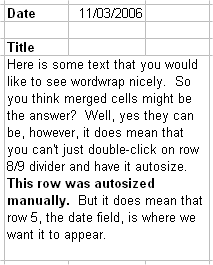
The first solution that we might try is to merge a few cells. This works, date is not pushed to the right. However, Excel’s ability to increase the row size to suit the amount of text is lost – double clicking on the row divider does not work and simply results in a single line of visible text, as shown below:

excel4

In order to alleviate this problem, we have to resize the row manually. This is a tedious process and one that does not lend itself to automation, i.e. through programmatic means. Nonetheless, here’s a screenshot of the resized row:

excel2

The solution
The real solution, and it feels like a fudge, but it works very well, is this: use merged cells as before, somewhere to the right of the cell with merged text (e.g. A1), create a copy of the cell’s content (if your text is in cell A1, make cell Z1 “=A1”). Resize the copied cell (Z1) width to match the width (and formatting) of the merged cells (A1). Excel’s row auto-size feature will now work manually and programmatically. Here a screenshot that might help:

excel3

Perhaps this is best explained by use of an example spreadsheet.

Now, the reason why I making such a big thing about this is simple: Excel is great for producing tabular reports. However, to get some formating to work “just right”, it pays to using Excel automation, i.e. work with the format styles programatically. It is for this reason that I find myself writing the following snippet of code:


[C#]
const int cA = 1;
excelWorksheet.Cells[7, cA] = [long string of text];
Excel.Range r = excelWorksheet.get_Range("B7", "B7");
r.EntireRow.AutoFit();

It is the last two lines of code that perform the same function as double clicking on the row divider, thus the row grows to the correct height (albeit of the copied cell, Z1).

Automated Code Coverage and Unit Tests

How well have your tests exercised your code?

Over the course of this posting I plan to demonstrate a number of tools and topics that encompass “testing”. I’ll be looking at code coverage – how much of our code is “exercised” or used. I’ll be looking at tools that can help us with code coverage. I’ll focus on using NUnit for testing and will demonstrate how we can tie it into the code coverage activity. Finally, I’ll be looking how we can integrate all of this good stuff into the Visual Studio IDE…using TestDriven.NET.

With that in mind, I will go through the following:

  1. The creation of a simple class that does something trivial, in this case a calculator (Visual Studio, C#)
  2. The creation of a simple front-end application that uses the calculator (Visual Studio, C#)
  3. An examination of code coverage using the front-end application (NCover and NCoverExplorer)
  4. An examination of code coverage using unit tests (NUnit)

These four topics will demonstrate two things. Firstly, the benefit of using a code coverage tool to help you learn more about your application and the way that it works. Secondly, how that added benefit of a set of unit tests coupled with a code coverage tool can yield increased levels of confidence in your application’s testing strategy. Of course, prior to code coverage tools being automated, the simplest form of code coverage was the debugger: even as recently as 1998 I recall laboriously slaving over the Delphi debugger whilst I was “testing” my application. It was worth the toil, the few additional bugs that came to light meant that the application had years of trouble free use. Now, with code coverage integrated into the IDE, and with unit tests sitting side-by-side with the application source code, the time required to run the tests and perform a code coverage analysis is so short, it can be done with every build.

TestDriven.NET
TestDriven.NET provides an integration layer between a number of testing frameworks, such as NUnit, and the IDE. Before TestDriven.NET, we would write our tests, write some code, build everything and then we would fire up a separate application that would run the tests (e.g. the NUnit front-end). Generally this is/was fine as the benefits of test execution greatly outweighed the use of a secondary application. Whilst the NUnit front-end allows us to choose which tests we want to run (as opposed to running all tests), we still find ourselves leaving the IDE and jumping into another application.

So, in addition to integrating NUnit into the Visual Studio IDE, it also provides integration with NCover and NCoverExplorer.

Code Coverage
For the purposes of this posting, I am going to do and explain things in a slightly “out of order” fashion. I know that I have mentioned test-driven development already, and by rights we should be developing our application in that fashion. However, I would like to introduce code coverage first. Luckily the example that I plan to use is so simple, it could almost be tested without the need for test-driven development. The example that I plan to use to demonstrate code coverage is that of a simple calculator – I could have been more original, I apologise for my banality!

The Calculator Class
Implementing a simple calculator isn’t rocket science, but since I need you to be at least familiar with the code layout, here’s the code that I am using:

test1

Here’s a little front-end WinForms application that makes use of [some] the MyCalculator class.

test3

And here’s the code behind the WinForms application and the “add” button:

test8

So, having compiled CalcApp, we can submit the .exe to NCover. Before we do that, it’s probably useful if I introduce NCover.

What is NCover?
NCover is a command-line tool that scans your application’s code and records information about which lines of code were executed. NCover uses the “sequence points” that the compiler generates and stores in the .pdb file (debug information) to determine which lines of code are executed and how frequently. Without getting bogged down in detail, a sequence point is essentially a single program state or a line of code.

NCover’s command-line syntax is:

Usage: NCover /c [/a ]

/c Command line to launch profiled application.
/a List of assemblies to profile. i.e. "MyAssembly1;MyAssembly2"
/v Enable verbose logging (show instrumented code)

After NCover has analysed your code, it creates two files: coverage.log and coverage.xml.. The .log file contains the events and messages that NCover creates as it analyses your code base. The .xml file is very it all happens: it contains NCover’s analysis of your code base. There is a third file, coverage.xsl. It’s an XSL stylesheet that takes coverage.xml as its input, allowing it to be displayed in a neat tabular fashion inside Internet Explorer.

Running CalcApp through NCover
NCover’s output:

C:\Program Files\NCover>NCOVER.CONSOLE "...\dev\VS2005\Test\DDG\CalcApp\CalcApp\bin\Debug\CalcApp.exe"
NCover.Console v1.5.4 - Code Coverage Analysis for .NET - http://ncover.org
Copyright (c) 2004-2005 Peter Waldschmidt

Command: ...\dev\VS2005\Test\DDG\Calc
App\CalcApp\bin\Debug\CalcApp.exe
Command Args:
Working Directory:
Assemblies:
Coverage Xml: Coverage.Xml
Coverage Log: Coverage.Log

Waiting for profiled application to connect...
******************* Program Output *******************
***************** End Program Output *****************

Alternatively, with TestDriven.NET installed, there is the IDE menu integration:

test7

It’s important to note that the Coverage menu option is context sensitive. Depending upon “where” you right click, say either on the CalcApp solution or the TestLibrary, NCover will be invoked for the item you right clicked on. We will see this difference emerge later on in this posting when we demonstrate the difference between code coverage for CalcApp vs. code coverage for our NUnit tests.

Now, you may recall that I only implemented the “add” calculation. This is deliberate as I need to use the missing calculations to demonstrate code coverage.

Coverage.xml is too large to reprint here and it’s not all that easy to read. Fortunately, NCover’s author realised this and created an XSL (stylesheet) that transforms the XML into something a) more readable and b) more useful. The screenshot below presents a snapshot of that output – notice the green bars and red bars, we’re clearly in the ‘testing’ domain now. The full NCover coverage.xml file can be viewed here.
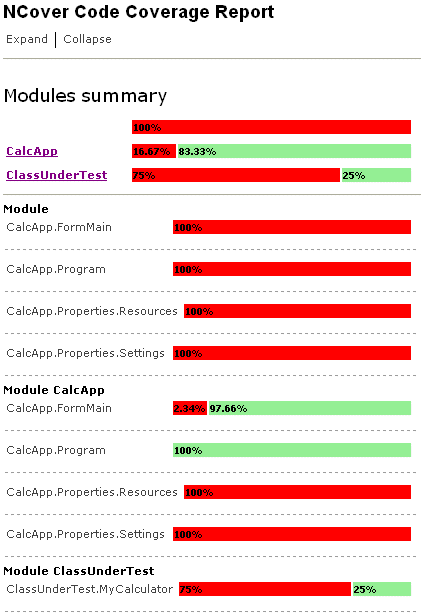
test10

From this report, we can easily see that we’ve only covered 25% of the MyCalculator class. However, and this is a key point, in order to get this far, we had to perform manual testing. We had run the application “through NCover” such that it could watch what was happening. We had to enter the number 38 and 4 and we had to move the mouse and click on the Add button. Whilst this is a better than stepping though code with the debugger, it’s not automated therefore it’s not repeatable.

NCover’s report looks great and it serves a good purpose. NCoverExplorer moves things to the next level, it takes the output from NCover and presents it graphically in a treeview with integrated code viewing:

test4

NCoverExplorer uses colour-coding to highlight the status of code coverage. It is configurable as the screenshot below demonstrates:
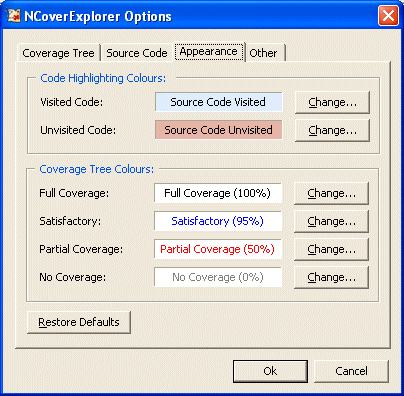
test9

Introducing unit tests with NUnit
Without going into too much detail about test-driven development and NUnit (further information can be found in the Resources section of this post), our next step is to prepare a new class that allows us to test the MyCalculator class. In reality, we would have written our tests before writing the MyCalculator class, we’re doing things in a slightly different order for the sake of this post.

So, using Visual Studio we simply add a new Class Library to our solution, add a reference to the ClassUnderTest namespace and we’re off. The following code demonstrates how we might use the NUnit testing framework to exercise MyCalculator. Whilst not an NUnit requirement, I prefer to name my test methods with the prefix “test”, other unit testing frameworks may vary. As you can see, we’re simply recreating the manual test that we performed using the desktop application and we’re still only testing the “add” method.
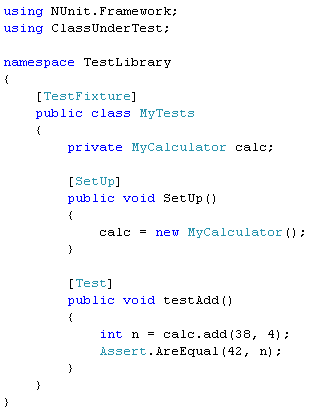
test2

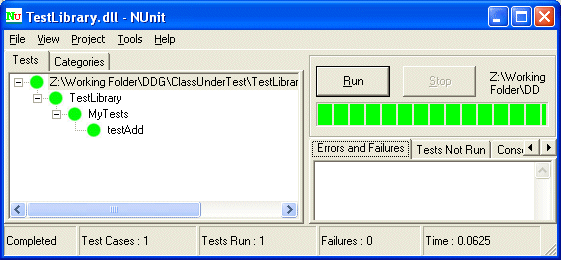
Inviting NUnit to run these tests, in the absence of TestDriven.NET, would mean leaving the IDE. However, with TestDriven.NET, we can right click on the TestLibrary and run the tests using NUnit. The screenshot below presents the output from the NUnit front-end. It clearly demonstrates that the test for addition succeeded and with that we gain the confidence that “everything’s working”. However, what it doesn’t tell us is the fact that we’ve missed out testing some 75% of the MyCalculator class. For that, we need to use NCover on our tests.
test11

Here’s a screenshot of NCoverExplorer viewing NCover’s Coverage.xml after it has analysed the tests:

test5

The key takeaway from this screenshot, and indeed this posting, is the fact that we have automated our test and our code coverage: we can see in a single screenshot how well our tests are exercising our code.

I discovered NCover and NCoverExplorer via a couple of blog posts and was suitably impressed – I am always on the look out for ways of ensuring that my applications are as well tested as they can be. After all, there is nothing worse than a stream of ‘phone calls from your users each complaining about a show stopping crash or feature that does not appear to work. With careful use of the tools mentioned above, we can get ensure that our applications are tested and that we have no code that is unused. Code that is unused is often the source of bugs or feature failures. In the past, without tests and without code coverage tools, we had to resort to using a debugger to test all paths through our code – that was a laborious process fraught with repetition and boredom.

My recommendation: install NCover, install NCoverExplorer, install NUnit, install TestDriven.NET.

Further Reading
TestDriven.NET
TestDriven.NET Google Group
NUnit
MbUnit
Microsoft Team System
Peter Waldschmidt.’s NCover
NCoverExplorer
NCoverExplorer FAQ

DotNet Developers Group articles:
Test-Driven Development: a practical guide, Nov/Dec 2003
Test-Driven Development Using csUnit in C#Builder, Jan/Feb 2004

Developer Survey

VBUG’s Developer Survey 2006 offers the following prizes and discounts:

  • An Ipod Nano
  • 5 x 12 month VBUG subscriptions – worth £149 each (see http://www.vbug.net/members/join/default.asp)
  • 20 x 12 month subscriptions to the Visual Studio magazine
  • Every developer who completes this survey is entitled to a MASSIVE 30% discount from this excellent new range of VS 2005 books from Wiley. To claim this saving please click onto the following link and use this special code of EVT: www.wiley.co.uk

More information can be found here.

Using LDAP to locate a user name

I found myself needing to extract the current user’s full name from our Active Directory today. For a variety of reasons, I’ve not done too much work in this area, so I had to hunt around for a few minutes before arriving at a solution.

Firstly, I had to add a reference to System.DirectoryServices to my project – no problem, right click on the References node in Visual Studio and choose Add Reference. Secondly, I had to add using System.DirectoryServices to my source code.

Anyway, here’s the C# code that I used – note the use of the UserName property from the Environment class.

using System.DirectoryServices;
...
DirectoryEntry directoryEntry = new DirectoryEntry("LDAP://dc=DOMAIN_CONTEXT,dc=com");
DirectorySearcher directorySearcher = new DirectorySearcher(directoryEntry);
directorySearcher.Filter = "(&(objectCategory=person)(sAMAccountName=" + Environment.UserName + "))";
DirectoryEntry result = directorySearcher.FindOne().GetDirectoryEntry();

string name = result.Properties["displayName"].Value.ToString();

In my case, the username CMurphy became Craig Murphy (displayName). Your properties may vary, and you’ll need to know your own domain context (dc).

Watch out for traffic wardens…

WardenWatch strikes me as something that might work, but only if there are enough good citizens out there.

Membership is free if you apply before the end of March 2006, then it rises to £10.

However it does require two things:

1. Signed up members who are want to receive a text message advising them to go back to their vehicles.

2. A large number of good citizens willing to spend up to 10p sending a text message that will bring them no benefit except for the small chance that a warden might not complete the issuing of a ticket. I think this bit needs to be incentivised a little more…there are a lot of “what’s in it for me?” folks out there.

I’ll be keeping one eye on the whole thing.

DesignIT: innovation deserves recognition

The DesignIT panel invite you to submit a deployed or aspirational system design, appropriate for any size of organisation, in either the commercial or not for profit sectors. Your chosen system design accompanied with a brief summary should not only display the integration of different technologies, but also demonstrate clear business benefits and return on investment. You can submit anything from a picture perfect Visio diagram to a sketch from a whiteboard and don’t worry, your system design can include more than just Microsoft technology.

There’s a top prize: The winner from DesignIT will be awarded a trip to the Ice Hotel in Sweden for two people.

And there are some neat runner up prizes: Xbox 360, Creative Zen (MP3 Player) , Smartphone, Media Centre PC.

Interested? More here.

A sad day…

Today saw me leave my job that I kept me off the streets for the last eight years and 3 weeks.

I’ve left because a better opportunity has come along – one that will see me more involved in ground up software development using .NET.

What will I miss most? Easy: the good people. I’ve left behind a lot of good folks, I will miss many of them – tonight, I had a drink in the Caly Ale House with a few of them.

I won’t miss the excessive admin, overhead and bureaucracy (AOB) that wore me down and I won’t miss the people who put the AOB there. AOB is wrong and should be eradicated.

Anyway, I managed to leave with “zero” e-mails in my in-box and my three big tasks for the day complete. I would like to have performed more testing, but I have only the one pair of hands.

I’ll keep you posted re: new ventures.